 DiscountIQ
List the active offers and their discount classes, check the combination settings on each one, and test the actual cart. An automatic discount and a code do not combine just because both exist. Shopify's eligibility rules and the settings on both discounts determine the outcome.
Write down the offers that can overlap
A store can have a welcome code, a quantity offer, a free-shipping promotion, and a campaign created by another app. Review the full set that could apply to the same purchase before adding one more promotion.
For each offer, record its name, class, method, eligibility, dates, and combination settings. Include app-created discounts in the review. The important question is what a qualifying buyer can receive in the actual cart, not how many offers appear in a dashboard.
| Offer to review | Eligibility example | Question to test |
|---|---|---|
| Quantity promotion | A qualifying quantity of an item | Does another product offer also apply? |
| Order code | An eligible cart subtotal | Can it combine with the product offer? |
| Free shipping | An eligible shipping threshold | Which cart value and shipping option qualify? |
| VIP campaign | A configured buyer eligibility rule | What happens for eligible and ineligible buyers? |
Check each discount's combination settings
Shopify distinguishes product, order, and shipping discounts. Combination eligibility depends on the relevant classes and the settings on the discounts involved. Some combinations also have store or plan requirements.
Review the current Shopify documentation rather than relying on an old claim that only one discount can ever apply. If an offer is created by an app, confirm its supported settings and test it alongside native Shopify discounts. Do not infer compatibility from the label 'automatic' or 'coupon'.
- Open Discounts in Shopify admin and select the first offer.
- Review its Combinations settings and the classes it permits, then save any intended change.
- Open the other offer and check its corresponding settings as well.
- For an app-created offer, review the saved app configuration and the resulting Shopify discount before testing.
Work through an illustrative cart
Suppose an illustrative $100 merchandise subtotal receives an eligible 20% product discount. The merchandise amount becomes $80. If a separately eligible 10% order discount then applies to that discounted subtotal, the result is $72 before shipping and tax. The combined merchandise reduction in that example is 28%, not 30%.
This arithmetic explains why it is useful to write down the order of operations. It does not establish that your offers are eligible to combine, how rounding works for your cart, or how taxes and shipping are handled. Confirm the real result in checkout.
Use a cart matrix with expected and observed results
For the illustrative $100 cart above, a 20% product discount followed by an eligible 10% order discount gives a $72 merchandise amount before shipping and tax. Two percentage order discounts are a different case: Shopify calculates both against the same applicable order subtotal.
Copy the matrix into your campaign notes. Enter your actual observed checkout result and the applied discount labels; the expectations below are not test results.
| Case to test | Conditional expectation | Record from checkout |
|---|---|---|
| Product 20% + order 10%; mutually allowed and eligible | $72 merchandise amount from $100 | Applied labels and merchandise amount |
| Product and order settings do not permit combining | Do not expect the two discounts to stack | Which eligible offer Shopify selected |
| Order 20% + order 10%; eligible and combinable | $70 from a $100 applicable subtotal | Applied labels and actual subtotal |
| Buyer or cart fails an eligibility rule | Ineligible offer does not apply | Buyer/cart context and outcome |
Build a test matrix before launch
Test both the cart you want to reward and the nearest cart that should not qualify. Include other offers a real buyer might have. Use an appropriate development or test setup so that checking a configuration does not accidentally expose an unfinished campaign to customers.
- Test below, at, and above each quantity or subtotal threshold.
- Try a cart with an excluded product or a different variant.
- Check an eligible buyer and a buyer who should not qualify.
- Apply relevant codes alongside the automatic offer.
- Review start and end dates, market context, shipping, and the final checkout totals.
Use DiscountIQ for setup, then verify checkout
DiscountIQ helps configure supported campaigns and coupon codes with guided rules and previews. Review eligibility, dates, and combination settings before choosing when to create or activate the offer.
A preview is useful for planning but cannot prove every checkout outcome. Keep the tested carts and expected results with the campaign record. If the result differs, inspect Shopify's applied discounts and the offer settings before changing multiple rules at once.
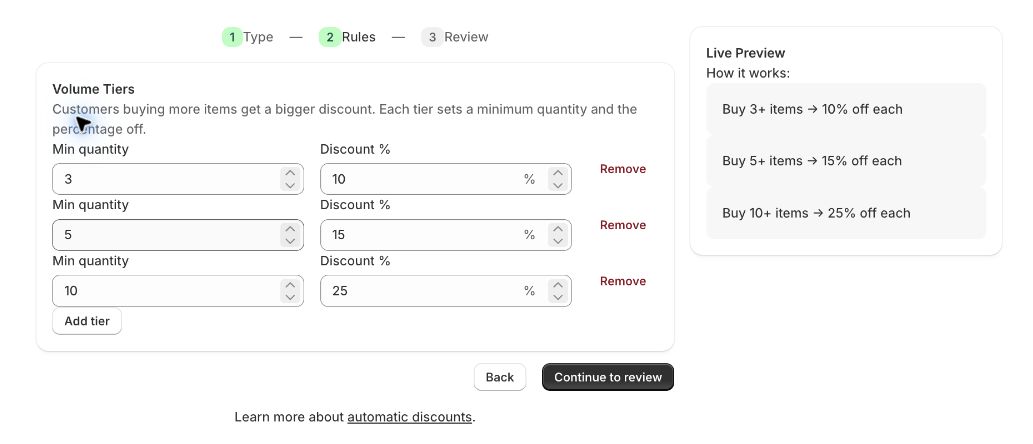
For volume tiers, the current DiscountIQ Function checks the quantity on each product-variant cart line. Three units of one variant and one unit each of three different variants are different tests. Do not treat the rules preview as proof that a mixed cart qualifies.
How this guide was checked
Instructions and examples reviewed by SHWRK.
- Combination behavior and discount order were checked against Shopify’s current documentation. DiscountIQ control names and per-cart-line volume thresholds were checked against the current implementation and its local Function tests.
- The cart amounts and matrix are illustrative expectations. The October 15 rules screenshot is a real editor preview; no new live checkout result or campaign activation is claimed.
Sources and further reading
Shopify behavior can change. Consult the current documentation and your store settings before making changes.
See where DiscountIQ fits
Plan Shopify discount campaigns and coupon codes with DiscountIQ. Review rules, eligibility, and combinations, then verify the result in checkout.